
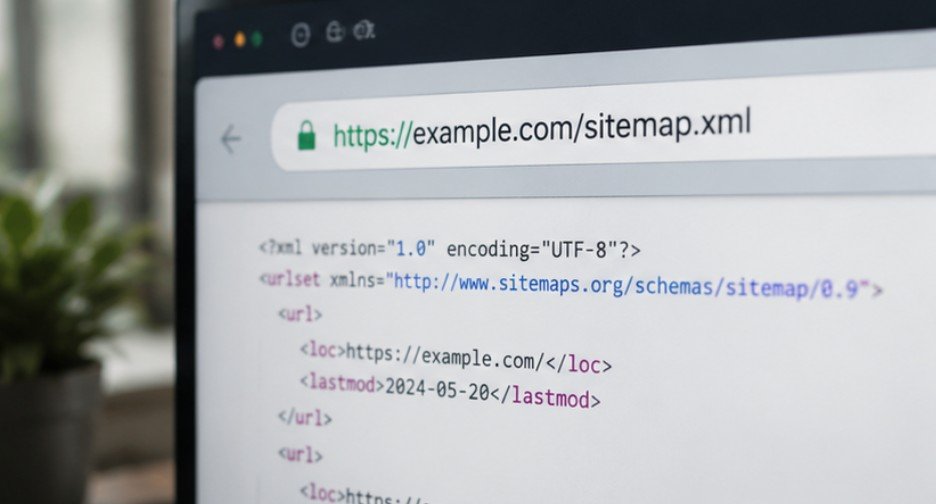
Building a stunning website is only half the battle in search engine optimization; making sure search engines actually index your content is where the real work begins. Spend hours tweaking your technical SEO and publishing great articles, only to wonder why search crawlers haven’t indexed them yet? Let us walk through how to submit a sitemap to google console so your site gets processed fast.
What Makes an XML Sitemap Essential for Search Engines
Think of an XML sitemap as an interactive floor plan built specifically for search engine web crawlers.
An XML sitemap gives search engines a clear list of your important URLs, helping them crawl your site efficiently instead of guessing your site architecture. Rather than leaving search bots to wander blindly through internal links, a sitemap provides direct directives showing where your valuable content lives.
Accelerating Discovery of Fresh Content
When you publish fresh posts or update existing landing pages, your sitemap alerts Googlebot almost instantly. While regular site crawling eventually finds these pages, submitting your file speeds up indexing significantly. This quick discovery matters immensely when you want to rank for timely search intent or secure immediate search visibility.
Navigating Complex Website Architecture
E-commerce storefronts, massive blogs, and enterprise websites often have deep page structures that confuse web crawlers. A structured sitemap acts as a clear directory, ensuring secondary categories and product variations do not get skipped. By highlighting canonical links in your sitemap file, you tell Google exactly which pages deserve priority indexing.
This becomes especially important when building a content strategy for healthcare organizations, where service pages, physician profiles, treatment guides, patient resources, and location pages must remain easy for search engines to discover and organize.
Finding and Validating Your Sitemap File URL

Locating your sitemap file URL takes just a minute because most content management systems generate it automatically at standard root locations.
Common Sitemap Paths by Platform
WordPress sites using plugins like Yoast or RankMath generally host their file at [yoursite.com/sitemap_index.xml](https://yoursite.com/sitemap_index.xml). Shopify, Wix, and Squarespace automatically construct and update yours at [yoursite.com/sitemap.xml](https://yoursite.com/sitemap.xml) without requiring extra setup. If you run a custom platform, you might need to use an online XML generator or an SEO crawler like Screaming Frog to build one.
Checking XML Formatting and Response Codes
Open your browser, type in your full sitemap address, and verify that it loads a structured XML document instead of a 404 page. The page must return a clean 200 OK HTTP status code and contain proper XML formatting like <urlset> and <loc> tags. Make sure your sitemap lists canonical, indexable URLs rather than 301 redirects, soft 404s, or pages blocked by noindex tags.
Step-by-Step Guide: How to Submit Sitemap to Google Console
Submitting your sitemap directly inside the Search Console gives you full visibility into how search crawlers process your pages.
Step 1: Find Your Sitemap URL
Before opening any tools, double check that your sitemap file actually exists and loads properly in your browser window.
Most websites host their main sitemap at your domain followed by /sitemap.xml or /sitemap_index.xml. Type that address into your web browser bar and press enter to ensure you see a formatted XML page rather than a custom 404 error page.
Step 2: Access Google Search Console

Logging into your verified administrative dashboard is required to push new site signals directly to search engines.
Head over to Google Search Console and log into your account using your preferred credentials. Look at the top-left dropdown menu and ensure you have selected the exact website property you want to manage.
Step 3: Navigate to the Sitemaps Tool
Locating the proper tool panel inside the Search Console dashboard interface is simple once you know where to look.
Look at the main menu sidebar on the left side of your screen. Locate the section labeled “Indexing” and click directly on the “Sitemaps” option to open your configuration workspace.
Step 4: Submit the Sitemap
Finalizing your submission tells Googlebot to queue your pages for rapid discovery and detailed indexing analysis.
Look for the box labeled “Add a new sitemap” at the top of the main screen. Type or paste your sitemap path extension, such as sitemap.xml, directly into the input field and click the Submit button. Google will immediately process the file and report whether your submission succeeded or if errors occurred.
Troubleshooting Common Search Console Sitemap Errors

Even experienced SEO specialists encounter parsing errors when submitting sitemaps to Search Console.
Understanding what these status warnings mean helps you resolve indexation blocks quickly before they affect organic traffic.
Resolving the Couldn’t Fetch Status
The dreaded “Couldn’t fetch” status is the most common error users see after submitting a file.
This message usually appears because of temporary server caching delays, strict firewall settings blocking Googlebot, or a simple typo in your submitted URL. First, verify that your robots.txt file does not block search engines from crawling your sitemap location. If the file opens fine in your browser, wait a few hours and click submit again; Search Console often resolves this status on its next automated fetch attempt.
Fixing Syntax and Formatting Warnings
Invalid tags, missing attributes, or incorrect file encodings prevent Google from reading your sitemap data properly.
Make sure your sitemap uses clean UTF-8 encoding and avoids banned tags like <changefreq> or <priority>, which Google’s modern algorithm ignores. If your site has over 50,000 URLs or exceeds 50MB in file size, split your pages into multiple smaller XML files tied together by a primary sitemap index file.
Advanced Sitemap Best Practices for Search Visibility
Submitting your initial XML file is just the beginning of maintaining a healthy, search-engine-friendly website.
Reliable crawling and indexing also support efforts to learn how to win featured snippets on Google. Search engines must first discover, process, and understand your optimized pages before they can extract concise answers, lists, or tables for prominent search result features.
Applying advanced technical SEO practices keeps your crawling budget optimized so search engines focus exclusively on your highest-value pages.
Combining Sitemap Submissions with Robots.txt Directives
Linking your sitemap inside your robots.txt file provides a universal roadmap for all web crawlers.
Add a simple directive line at the bottom of your robots.txt file pointing straight to your full sitemap URL, like Sitemap: [https://yoursite.com/sitemap.xml](https://yoursite.com/sitemap.xml). This helps search engines like Bing, DuckDuckGo, and Yahoo discover your sitemap automatically even if you haven’t logged into their master tools.
Managing Specialized Image and Video Sitemaps
Rich media content often requires distinct sitemap setups to trigger visual search features and carousels.
If your website relies heavily on visual assets, create separate image or video sitemap files to give Google direct metadata about media titles, thumbnails, and licenses. Alternatively, embed media tags directly inside your main XML file to streamline media discovery without creating multiple sitemap paths.
Frequently Asked Questions
1. How do I submit a site to the Google Search Console?
Sign into Google Search Console, click Add Property, enter your domain or URL prefix, and verify ownership using DNS records, HTML tags, or Google Analytics tags.
2. Do you need to submit a sitemap to Google?
Submitting is not strictly mandatory since Google eventually finds pages through links, but it dramatically speeds up indexing and helps catch technical crawling errors early on.
3. Where to submit a sitemap?
Submit your sitemap file inside Google Search Console under the Sitemaps menu item located in the left hand navigation bar under the Indexing control section.
4. What is a sitemap in Google Search Console?
A sitemap in Search Console is a submitted XML file listing your essential site URLs, helping search engines understand your site architecture and index new pages efficiently.
Be Boss of Google Search Console Submissions
Now that you know how to submit sitemap to google console, you hold the keys to faster indexation and better search visibility. Keep your XML sitemaps clean, monitor Search Console for fetch warnings regularly, and align your robots.txt directives for seamless crawling.
Take five minutes to submit your sitemap today and give your technical SEO the solid foundation it deserves!